01
You want a physical keyboard
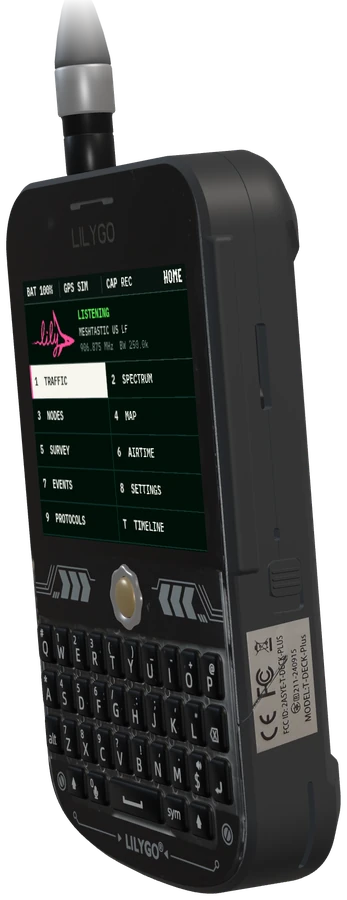
LilyGO T-Deck PlusScreen, keyboard and trackball in one handheld. Confirm the firmware and exact hardware variant.
Listed by makerBuy
A keyboard, a phone-connected tracker, or an e-paper node? Start with how you want to send a message.
01
Screen, keyboard and trackball in one handheld. Confirm the firmware and exact hardware variant.
02
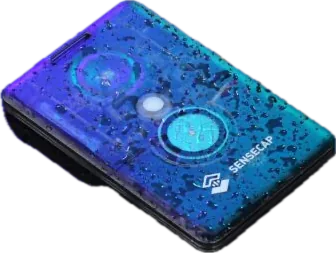
A card-sized tracker with no screen. Use the phone for messaging and keep the magnetic charging cable nearby.
03
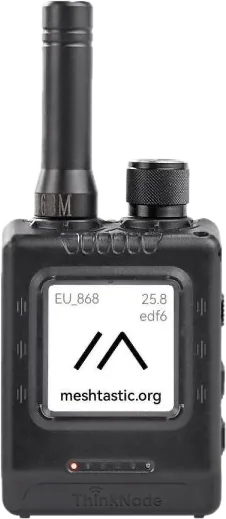
A phone-connected node with an e-paper display and GNSS. Choose the correct regional radio variant.
Selections are based on the source-checked catalog and Meshtastic documentation. They are starting points, not a field-tested ranking.
Progress saved in this browser.
0 of 3 steps complete
Use two compatible Meshtastic nodes for a repeatable first test. Charge them and identify each device’s exact model.
Meshtastic setup guide ↗Follow the official setup for your hardware. Set the appropriate region and use matching channel settings on both nodes.
Initial configuration ↗Confirm a message in both directions before trying greater distance. Record the hardware, firmware and settings so you can repeat the test.
Meshtastic clients ↗